
A content calendar template is only useful if you actually use it. Most people build one in January, fill it in for three weeks, and quietly abandon it when real work gets in the way. The problem is rarely motivation; it is that the template itself is poorly designed for how content creation actually works day to day.
I have tried spreadsheets, Notion databases, Trello boards, and dedicated editorial tools. What I use now and what has survived eighteen months of consistent weekly publishing is a stripped-down Google Sheets template with exactly nine non-negotiable fields, a quarterly planning layer, and one weekly review habit that takes twenty minutes. Here is the whole thing.
Why Most Content Calendar Templates Break Down in Practice
The most common failure mode is over-engineering. A new calendar template lands in your workflow with twenty columns: draft date, edit date, publish date, SEO score, word count target, pillar tag, funnel stage, persona, promotion channel, and six more fields someone added: “just in case.”
You fill it in for the first post enthusiastically. By the fourth post, half the fields are empty. By the eighth, the whole thing is a ghost town.
The second failure mode is planning too far forward with too much specificity. Locking in exact post titles twelve weeks out sounds disciplined. In practice, something you hear in a podcast on Thursday will make a better post than whatever you planned in November.
A good content calendar template plans at different levels of detail depending on how far out you are looking: specific this week, directional next month, thematic next quarter.
Here is the non-obvious insight most template articles skip: the best content calendar is not the most complete one; it is the most honest one.
It reflects what you will actually publish, not what you aspire to publish on your best imaginary week.
“A simple calendar you actually use beats a sophisticated one you abandon after week two.”
The 9 Non-Negotiable Fields in a Content Calendar Template
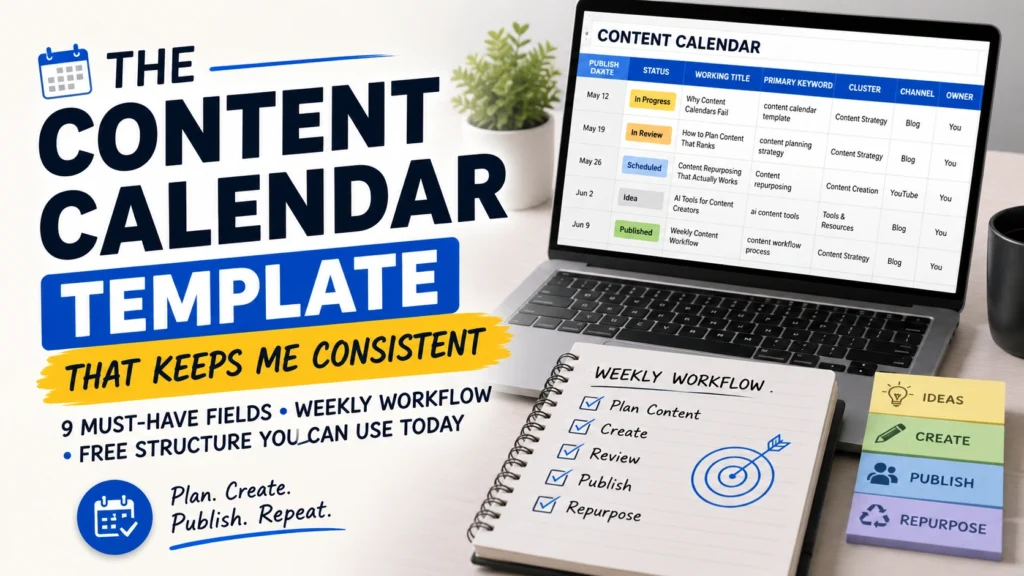
Every row in your calendar represents one piece of content. Not all calendar fields matter equally; these nine are non-negotiable. Skip any of them, and you will lose context, miss deadlines, or publish content that does not rank.
1. Publish Date
The single most important field. Not “draft by” date, not “edit by” date, the actual date it goes live.
Everything else is working backwards from this. In practice, I set publish dates first, then figure out what needs to happen before them.
2. Status
A simple dropdown: Idea, In Progress, In Review, Scheduled, Published.
This field alone eliminates the most common workflow question “where is this post right now?”
Color-code it using conditional formatting so you can scan the entire pipeline visually in five seconds.
3. Working Title
Not the final SEO title, just enough to know what this post is.
“Why content calendars fail” is a working title. It gets you writing. The final H1 comes later when you know what angle landed.
4. Primary Keyword
The one keyword this post is trying to rank for. One.
If you cannot name it before you start writing, you are not ready to write it. This field forces the SEO discipline that separates content that ranks from content that merely exists.
5. Content Cluster / Pillar
A calendar built around clusters produces compound returns; a calendar built around isolated keywords produces a long tail of orphan posts.
Tag every post to its parent pillar. When you build enough supporting posts around one pillar, the whole cluster lifts in rankings, not just individual pages.
6. Owner
Who is responsible for this post being published on time?
Even if you are a solo creator, naming yourself forces accountability. For teams, unclear ownership is one of the biggest sources of missed deadlines.
7. Channel
Blog, YouTube, LinkedIn, newsletter, social media where is this piece going?
One post can map to multiple channels if it is being repurposed, but the primary channel should be named so you are writing for the right format and audience from the start.
8. Repurpose Plan
This is the field most templates omit and most publishers should not.
Every blog post has at least one downstream repurpose: a social caption, a newsletter summary, or a LinkedIn post pulling the best insight.
Naming it in the calendar means it actually happens. Leaving it implicit means it usually does not.
9. Refresh Date
Content does not stay fresh forever. Search results, competitors, statistics, screenshots, and recommendations change.
If you are not scheduling refresh cycles when you publish, older content can slowly lose relevance.
Add a refresh date at the time of publication. Twelve months is a reasonable default for most evergreen content.
The Content Calendar Template: Build It in Google Sheets in 30 Minutes
You do not need a paid tool to run this.
Google Sheets handles everything a small to mid-size content operation needs, and it is shareable, collaborative, and free.
Here is the exact structure.
Tab 1 Master Calendar (The Main View)
One row per piece of content.
Columns in this order:
Publish Date | Status | Working Title | Primary Keyword | Cluster | Channel | Owner | Repurpose Plan | Refresh Date | Notes
Sort by Publish Date.
Filter by Status to see only what is In Progress.
Filter by Cluster to see how balanced your coverage is.
This single view replaces most editorial meeting agendas.
Tab 2 Ideas Bank
Every content idea that is not yet scheduled goes here.
No publish date. No keyword research yet.
Just the idea, a rough cluster tag, and a note on where it came from: podcast, customer question, competitor gap, or another source.
Review this tab in your quarterly planning session and promote the best ideas to the Master Calendar.
In practice, this is the tab that saves your publishing schedule when you hit a creative block.
Having twenty ideas waiting to be written means a blank week never has to stay blank.
Tab 3: Pillar Map
Create a simple two-column reference:
Pillar Name | Target Keywords for That Pillar
This is where you define the four to six topic clusters your content strategy is built around.
Every new content idea gets evaluated against this map. If it does not fit a pillar, it either belongs in a new pillar or in the Ideas Bank as a low-priority item.
The Planning Rhythm That Makes a Content Calendar Template Actually Work
A template is a container. A rhythm is what fills it.
Most creators have one but not the other.
Here is the three-level planning rhythm I use.
Quarterly Set Pillars and Themes
Time required: 2–3 hours, once per quarter
Look at the next thirteen weeks.
Decide which two or three pillars you are prioritising this quarter. Identify any seasonal moments, product launches, or industry events that should anchor specific posts.
Populate the Ideas Bank with fifteen to twenty rough topic ideas across those pillars.
You are not filling in specific publish dates yet; you are setting direction.
Monthly Lock the Next Four Weeks
Time required: 30 minutes on the first Monday of the month
Take the best ideas from the Ideas Bank and assign them to publish dates across the next four weeks.
Add the keyword, cluster, channel, and owner.
Now you have four weeks of the Master Calendar filled with real, scheduled content rather than vague intentions.
Plan quarterly content at the theme level. Plan monthly content at the topic level.
This balance gives you structure while maintaining flexibility for reactive opportunities.
Weekly Review and Unblock
Time required: 20 minutes every Monday
Check the status of everything due this week.
Identify any blockers: missing assets, waiting on review, or content that has not been started, and deal with them immediately rather than discovering them on Thursday afternoon.
Update statuses. Confirm ownership.
This twenty-minute habit is what keeps the system running.
How to Use Your Content Calendar Template Alongside AI Content Generation
A content calendar tells you what to publish and when.
It does not solve the problem of how to produce it quickly enough to stay consistent.
This is where AI-assisted content generation tools fit into the workflow, not as a replacement for strategy, but as a production accelerator.
One workflow that has meaningfully reduced my production time is using YouTube videos as source material for blog posts.
A recorded tutorial, interview, or explainer already contains the knowledge, structure, and examples a blog post needs.
The missing piece is transformation: getting that spoken content into written form without spending three hours writing from scratch.
Gizmozo does exactly that.
You paste a YouTube URL, select the content type blog post, news article, educational content, or social media post and receive a structured, publish-ready draft in under 60 seconds.
The output is grounded in the video’s actual transcript rather than generic AI knowledge. This means it reflects the real ideas and examples from the source video instead of producing indistinct AI filler.
In calendar terms, any row in your Master Calendar that maps to a video source can move from “In Progress” to “In Review” in minutes.
That changes the production economics of a consistent publishing schedule significantly.
Try Gizmozo free at gizmozo.com; no credit card required.
Content Calendar Template: A Practical Build Checklist
Use this checklist the first time you build or rebuild your content calendar:
- Open Google Sheets and create three tabs: Master Calendar, Ideas Bank, and Pillar Map.
- Set up the nine column headers in Master Calendar.
- Add conditional formatting to the Status column: green for Published, yellow for In Progress, and red for Blocked.
- Define your four to six content pillars in the Pillar Map tab with target keywords for each.
- Add fifteen to twenty ideas to the Ideas Bank.
- Pull ideas from customer questions, competitor gaps, and YouTube videos in your niche.
- Promote four weeks of ideas to the Master Calendar with publish dates and primary keywords assigned.
- Set a recurring Monday calendar event: “Content Calendar Review 20 Min.”
- Add a Refresh Date to every post at the time of publishing.
- Identify one repurpose action for every post before it publishes.
Frequently Asked Questions
What Should a Content Calendar Template Include?
At minimum, a content calendar should include the publish date, status, working title, primary keyword, content cluster, owner, channel, repurpose plan, and refresh date.
These nine fields give you enough information to manage production, maintain an SEO strategy, and track what needs to be updated without creating unnecessary administrative work.
How Far in Advance Should I Plan My Content Calendar?
Plan at different levels of specificity depending on the time horizon.
Lock specific publish dates and topics four weeks ahead. Set directional themes and pillar priorities one quarter ahead.
Keep two weeks of fully written buffer content scheduled whenever possible so a disrupted week does not break your publishing streak.
What Is the Difference Between a Content Calendar and an Editorial Calendar?
A content calendar shows what publishes and when.
An editorial calendar adds the production stages: drafting, editing, approval, and scheduling with deadlines for each stage.
For solo creators and small teams, one combined template usually works fine.
For larger teams with multiple reviewers and approval chains, separating the planning view from the production workflow can reduce confusion.
How Do I Stay Consistent With a Content Calendar When Work Gets Busy?
Two habits protect consistency more than any tool: a twenty-minute Monday review and a two-week buffer of pre-written content.
The Monday review helps you catch problems before they become missed deadlines.
When something urgent pulls you away from creating new content, the buffer gives you time without breaking your publishing schedule.
Build that buffer before you need it.
The Bottom Line
The content calendar template that works is the one you will actually maintain.
Nine fields in a Google Sheet, a quarterly planning session, a monthly topic lock, and a twenty-minute Monday review create a system light enough to survive a busy week and structured enough to produce consistent results over months and years.
What the calendar cannot solve is production speed.
If you are producing video content alongside your blog, Gizmozo AI turns any YouTube video into a publish-ready blog post in under 60 seconds, grounded in the actual transcript, not generic AI output.
It is a fast way to fill a calendar row that maps to a video source.
Start with the calendar. Fill it with intent. Use the right tools to keep pace with it.